Step-by-Step Guide
How to Set Up Your Online Account
Getting your new User ID and password
If you had access to the previous Wealth Management online platform, simply visit the LOGIN page and click "Forgot Password" to validate your account and activate your access to the new platform. Follow the on-screen instructions to complete the setup process. Your User ID will remain the same.
If you are an account owner and with no prior Wealth Management online access, click create your profile and follow the prompts to get started.
If you are a signer or authorized third party, please contact your trusted Wealth Advisory team to receive your credentials, before attempting to register.
If you have any trouble at any point during the process, your Wealth Advisory team is always available to help.
One-time Personal Identification Number (PIN)
In addition while logging in, you will receive a one-time Personal Identification Number (PIN) that will be sent to your email address or phone number on file with Security National Wealth Management. This one-time PIN is sent as a security measure to ensure that the person attempting to set up your online profile is truly you. Do not share this link with anyone, only use it to confirm your own login. The PIN is valid for 20 minutes.
Haven't received your one-time PIN?
If you do not receive your one-time PIN, or if your PIN expires after 20 minutes, you may request another PIN by clicking the “Send me a new one-time PIN” link.
Setting your new password
Finally, you will be prompted to set a new password for future times you log in. Your password is case sensitive and must follow these rules:
- Be between 8 and 20 characters
- Contain at least one number, one lower case letter, and one uppercase letter
- Not have more than two repeating characters
- Not contain your name or User Id
Navigating Your Online Account
The online account display is set up with a left-hand navigation menu for ease of use. A brief summary of each option is below.
Dashboard
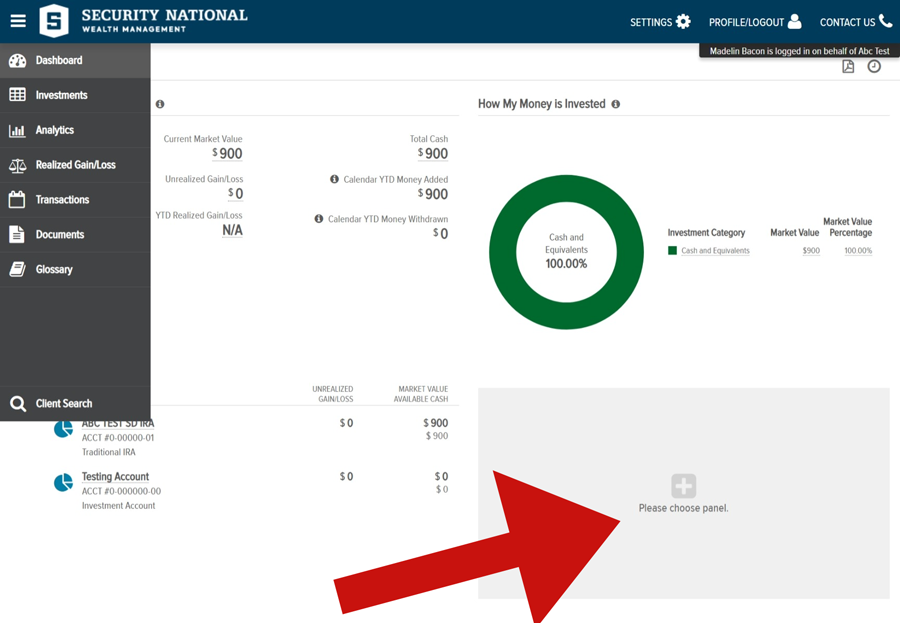
The dashboard is the “landing page” that you'll see after a successful login. It provides summary level information of your investment Accounts via independent, configurable “panels”. Of these panels, the Summary of Accounts panel is fixed in the upper left position and is always shown.
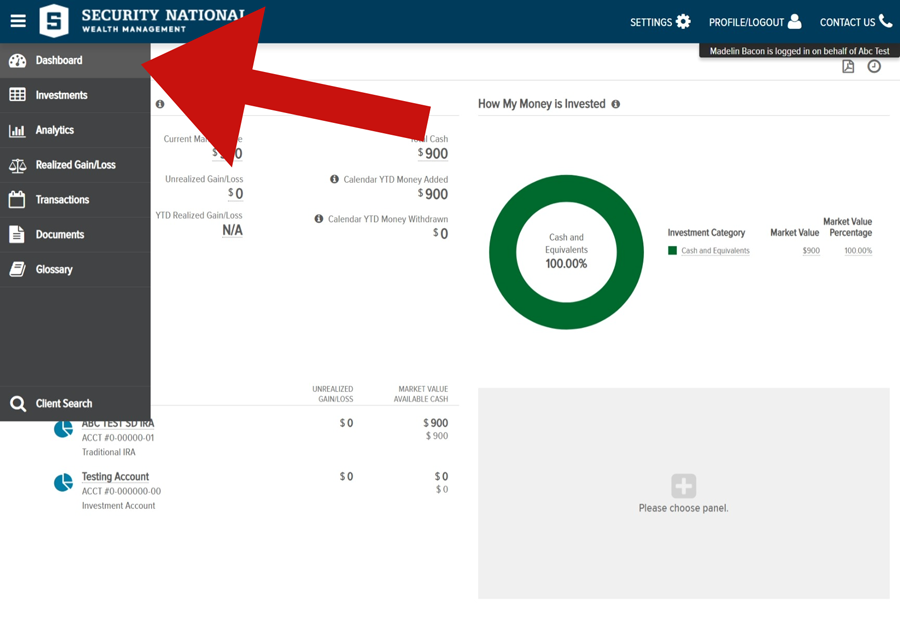
You have the option to personalize your remaining dashboard with panels such as:
- Summary of Accounts
- Market Commentary/Research/Articles
- How My Money Is Invested
- Videos
- My Top Holdings
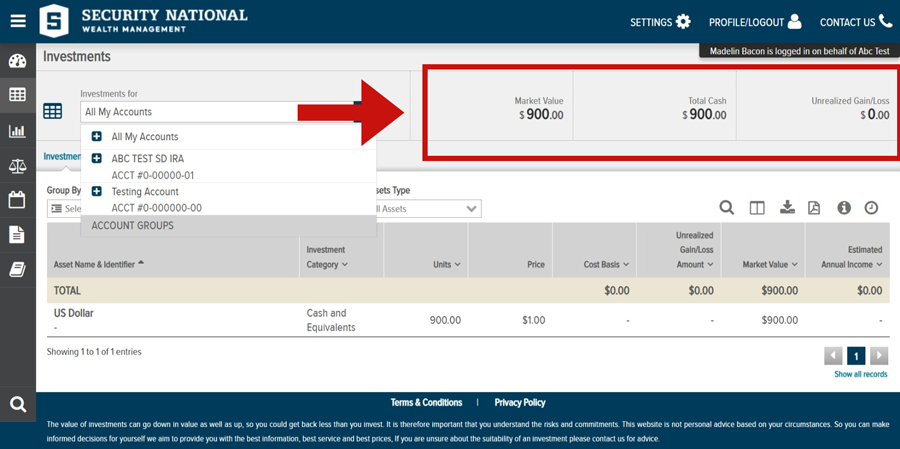
On the following pages a “header ribbon” displays the following Account level information (either for ‘All Accounts’ or a specific Account, subject to your selection:
- Market Value
- Total Cash
- Unrealized Gain/Loss
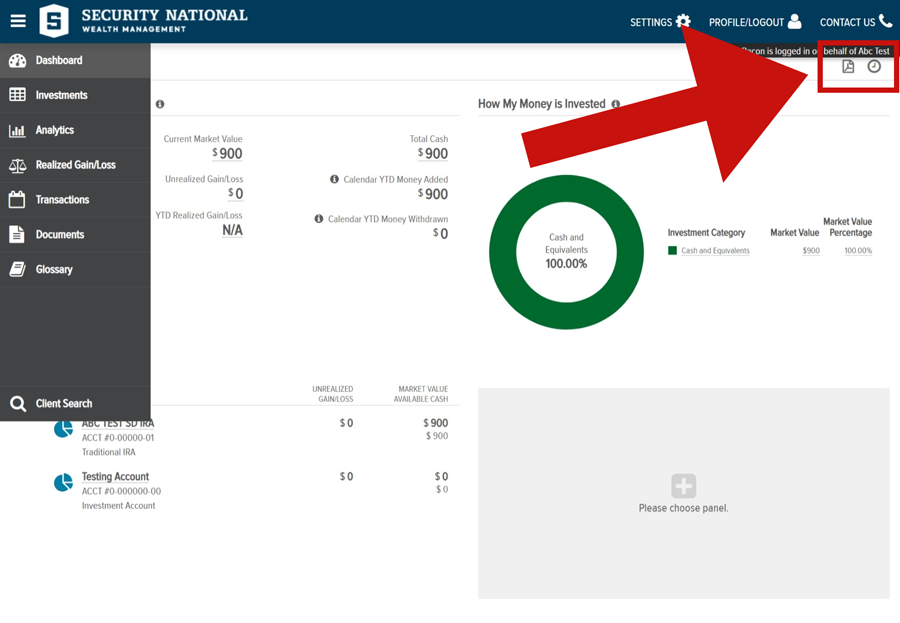
Many pages include action icons in the upper-right corner of the table. These icons allow you to search, download, print, and view the date and time the information was last updated.
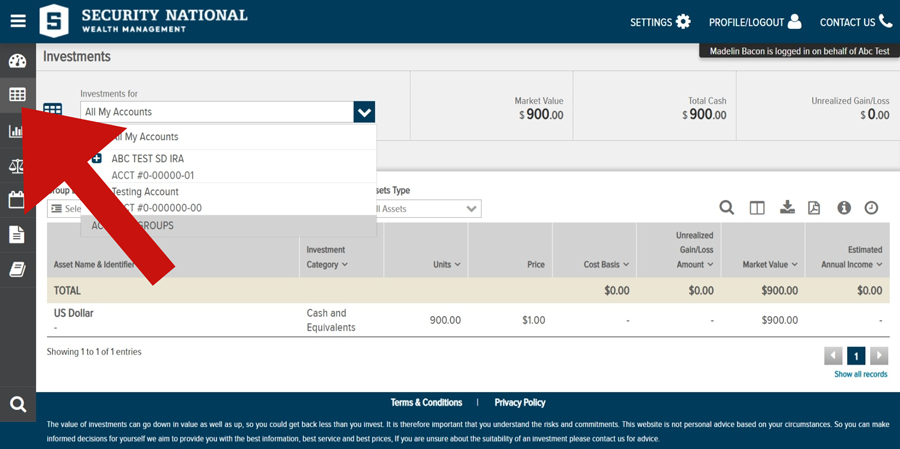
My Investments
My Investments displays information on holdings across ‘All Accounts’ or for a specific Account, subject to your selection:
- Asset Name and Identifier
- Investment Category
Units
- Price
Cost Basis
- Unrealized Gain/Loss
- Market Value
- Estimated Annual Income
Analytics
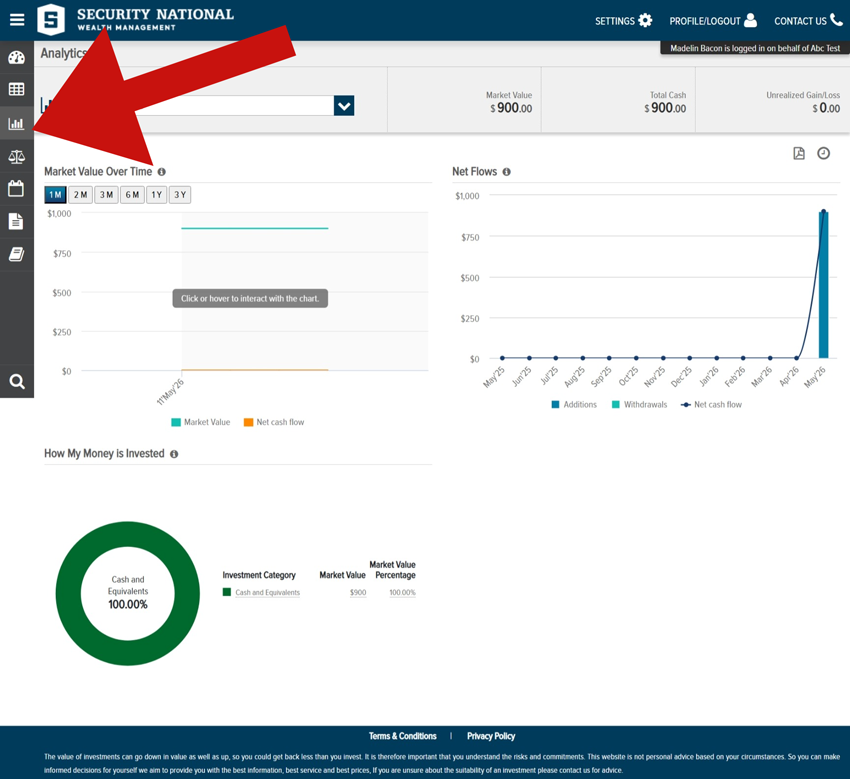
The Analytics page provides a more detailed view of your accounts through the following panels:
- Market Value Over Time
- Net Flows
Performance (If Applicable & Account Level Only)
- How My Money is Invested
Realized Gain/Loss
The realized gain/loss page will display the amount of gains and losses resulting from the sale of securities or capital gain distributions.
- The Detail view will display all transactions that resulted in a gain or loss. You may view this data for the current year or use the filter at the top of the table to view previous year gains & losses.
- The Summary view will provide a summary of your short and long term gains & losses for the current year and previous year, as well as display your unrealized gains/losses.
Transactions
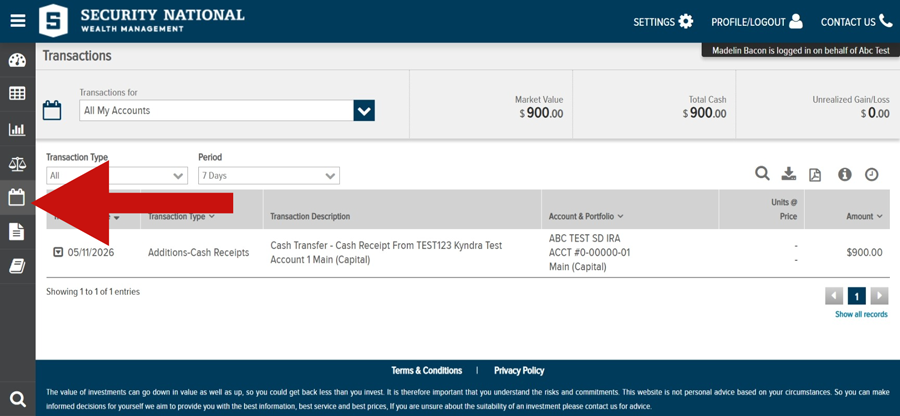
The Transactions Screen is a summarized view of the transactions in your account(s). The default view displays all transactions for the last 7 days. This section gives you a view of:
- Transaction Date
- Transaction Type
- Transaction Description
- Accounts & Portfolio
- Units @ Price
Amount
Documents
The Documents page provides you with access to your on-line document library. Here you can view the statements applicable to your account(s). You may view your documents for all of your accounts or a single account by using the account selector in the upper left hand corner.
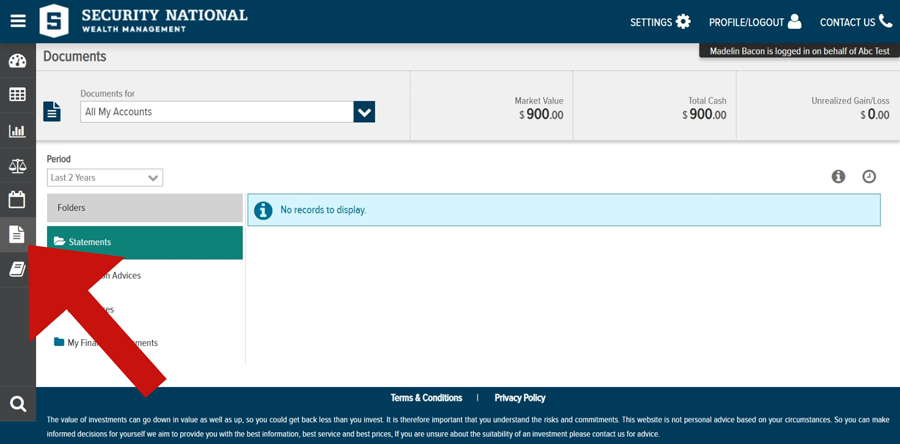
You can view your documents by selecting the Statements folder (other folders are also available to display documents such as Transaction Advices.) Click on the PDF icon to open your document in a new browser tab. Once open, you can view, print or save a copy of the document.
By selecting from the drop down in the left hand corner below the header ribbon, you can select the time period for which you want to view your documents.
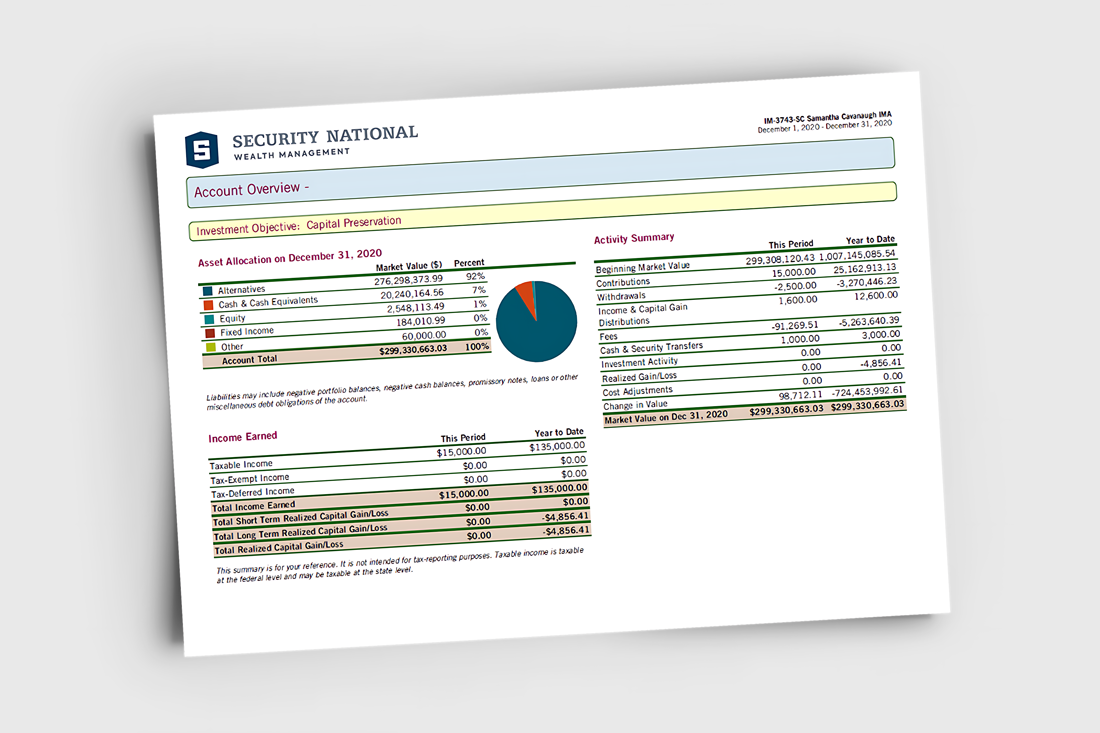
Whether you choose to receive printed, paper statements or simply view your electronic statements online, you will benefit from detailed account information for each of your accounts with Security National Wealth Management.
Each portfolio statement details your account activity and income earned for each period as compared to year-to-date. In addition, colorful graphs illustrate your asset allocation.
Password & Login Troubleshooting
I did not receive my One-Time Pin.
Please contact your Wealth Advisory team for assistance. They will need to confirm the email address and/or phone number on file. They can also generate a new One-Time Pin, if needed.
I've forgotten my User ID.
Click on the “Forgot User ID?” link on the LOGIN page. Your User ID will be sent to your registered email address.
I forgot my password.
Click on the “Forgot Your Password?” link on the LOGIN page. Instructions for resetting your password will be sent to your registered email address.
How to Download the SNB Wealth Management Mobile App
NOTE: The SNB Wealth Management App is under development and will be available on your favorite App Store soon. Check back often to this page for updates.
Understanding Your Statements
Whether you choose to receive printed, paper statements or simply view your electronic statements online, you will benefit from detailed account information for each of your accounts. Each portfolio statement details your account activity and income earned for each period as compared to year-to-date. In addition, colorful graphs illustrate your asset allocation.
How to Enroll in Electronic Statements
For certain statements and documents, you may choose to discontinue paper delivery and receive them electronically instead. By enrolling in eDelivery, your statements will be securely available through this website, and you will receive an email notification each time a new document is ready for review.
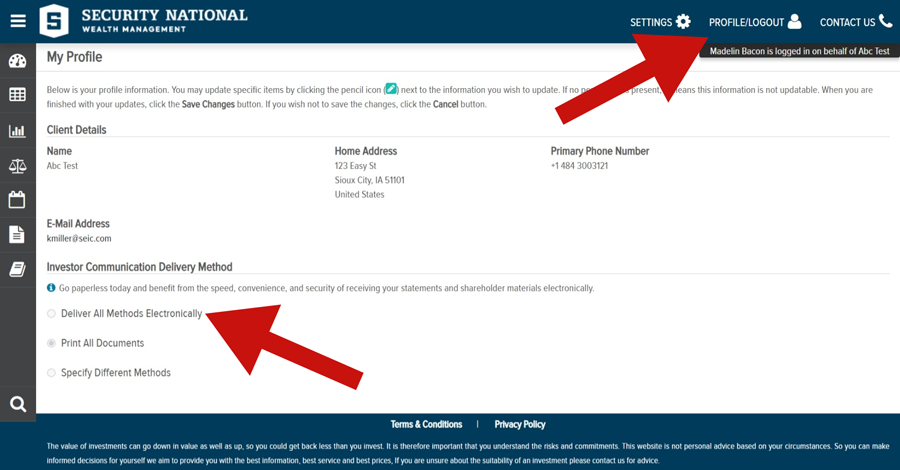
To sign up for e-delivery of statements, click on the ‘Profile/Logout’ link in the upper right hand side of the home page, then ‘My Profile’. Then, under the ‘Investor Communication Delivery Method’ section, select the option that you prefer.
In order to select different delivery methods for different statements, select “Specify Different Methods”. This will display a list of the statements that you are set up to receive and you can choose the method for each.
After you enroll in e-delivery, you will receive a confirmation email. In order for the changes to take effect, you must confirm your election of e-delivery by clicking the link within the confirmation email. This confirmation must take place within 72 hours of your enrollment in e-delivery or the changes will not take effect and paper statements will continue to be sent via mail.
Frequently Asked Questions (FAQs)
We have posted some FAQs and a step-by-step guide of what to expect on the new platform. If you have any questions that aren't answered here, please contact your advisor.
How do I enroll in online access?
If you had access to the previous Wealth Management online platform, simply visit the LOGIN page and click "Forgot Password" to validate your account and activate your access to the new platform. Follow the on-screen instructions to complete the setup process. Your User ID will remain the same.
If you are a signer or authorized third party, please contact your trusted Wealth Advisory team to receive your credentials, before attempting to register.
If you have any trouble at any point during the process, your Wealth Advisory team is always available to help.
If I already had an online account on the old platform, will my login credentials change?
Your username will remain the same. However, you will need to Register An Account and follow the prompts to finish setting up your access to the new platform.
If you are a signer or authorized third party, please contact your trusted Wealth Advisory team to receive your credentials, before attempting to register.
Will my account numbers change?
No. Your account numbers will remain exactly the same after the transition to the new platform.
Will my statements change?
Yes. Statements generated on or after June 1, 2026 will have a new look and format. Because the transition falls mid-year, your statement periods will be split as follows:
- Annual statements: January 31 – May 31, 2026 | June 1 – December 31, 2026
- Quarterly statements: April 1 – May 31, 2026 | June 1 – June 30, 2026
This is a standard part of any platform migration, and all of your account history will be preserved.
Can I switch to paperless / electronic statement delivery?
Yes. Starting June 1, you can opt out of paper delivery for some or all of your statements using the new platform. When enrolled in e-delivery, your statements will be available to view online and you'll receive an email notification each time a new one is ready.
Will my advisor or advising team change?
No. Your trusted Wealth Advisory team will remain exactly the same. This transition affects the technology platform only — your relationship with your advisor is unchanged.
Who should I contact if I have trouble logging in or navigating the new platform?
Please reach out directly to your trusted Wealth Advisory team. They are your best resource for any questions or issues related to logging in or navigating the new platform and are happy to help.
How will this transition affect my tax reporting for 2026?
This conversion will not impact your tax reporting in any way. You will continue to receive the same tax document you have always received — nothing changes on that front.
Will my scheduled or existing distributions be affected?
No. Any distributions you have already established will carry over to the new platform without interruption. Your distribution schedule and instructions will remain intact.
Is Your Question Not on This Page?
When you have questions about your Security National Wealth Management online experience, you can always contact us online, or call your Wealth Advisory team at (712) 277-6586.